CAE - a cell for everything
V0.3.0
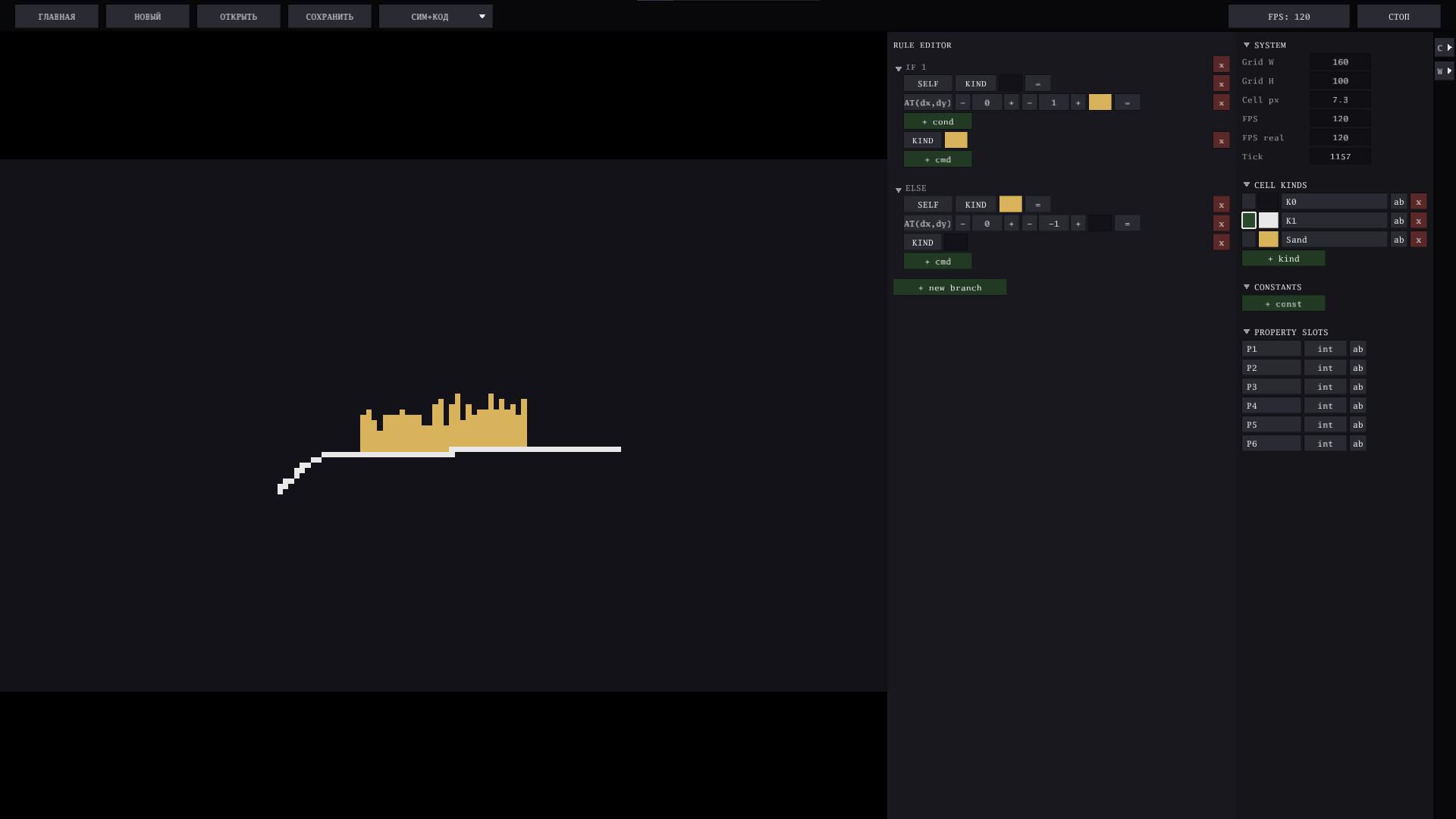
Update 0.3.0 — undo, a world you can resize, and a speed dial that finally works
Three things you could not do before this update: take back a click, change the size of the world, and set how fast the simulation actually runs. All three are here — plus the language learned to ask the simulation about itself.
Ctrl+Z
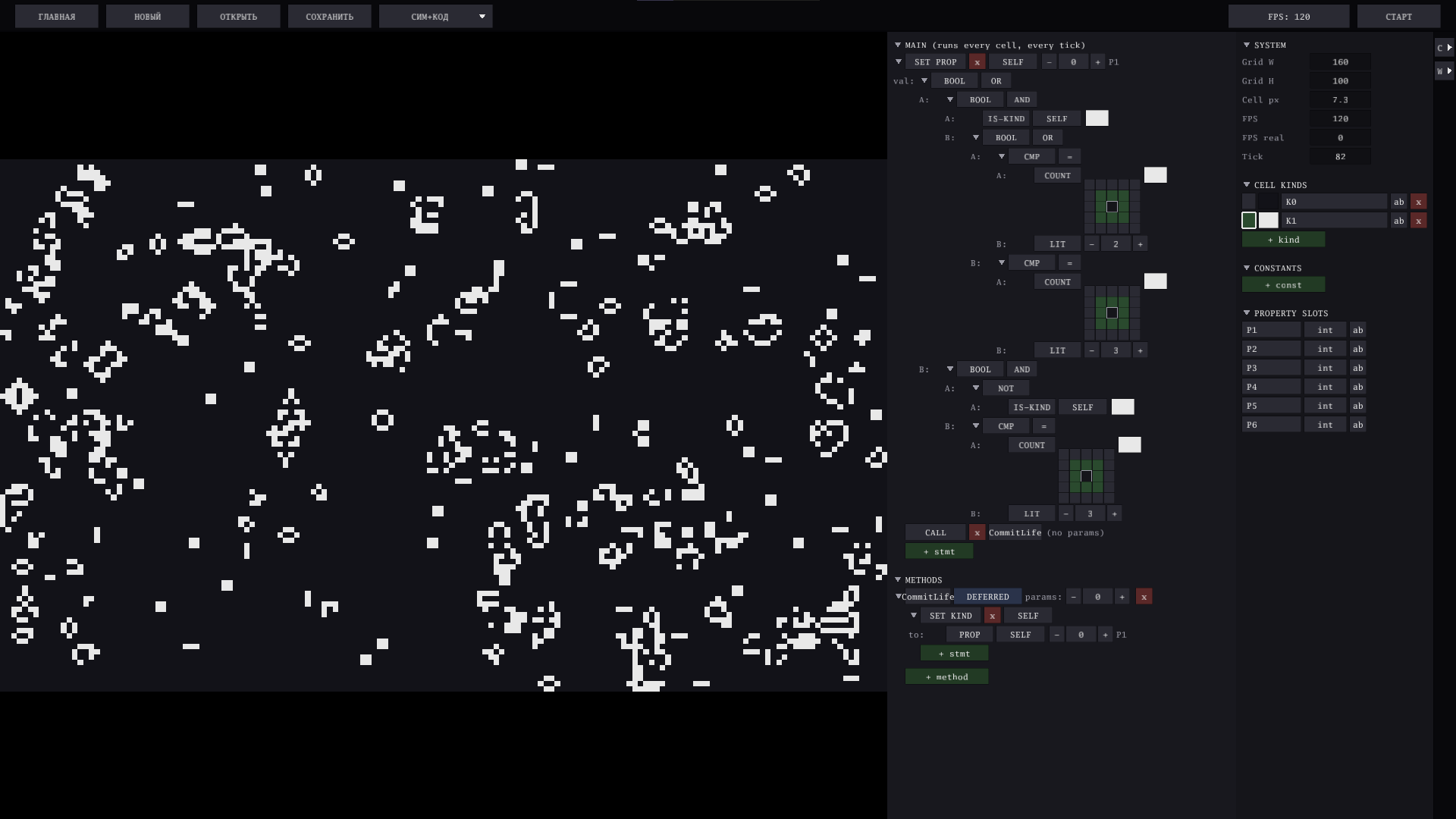
- Undo with
Ctrl+Z, redo withCtrl+Shift+Z. Deleted a branch, a method or a cell kind by a stray click? Take it back. Every edit to the world (kinds, constants, property slots) and to your rule or program goes into the history. - Fifty steps deep, on any project. Even the QR-code example — a program with thousands of nested nodes — costs about 35 KB per step, so the whole history fits in a couple of megabytes.
- Painting on the grid is deliberately left out of the history: the mouse is a brush, not an edit, and you would not want one
Ctrl+Zto undo a hundred strokes.
The world is not 160×100 any more
- Type a new size in the SYSTEM panel —
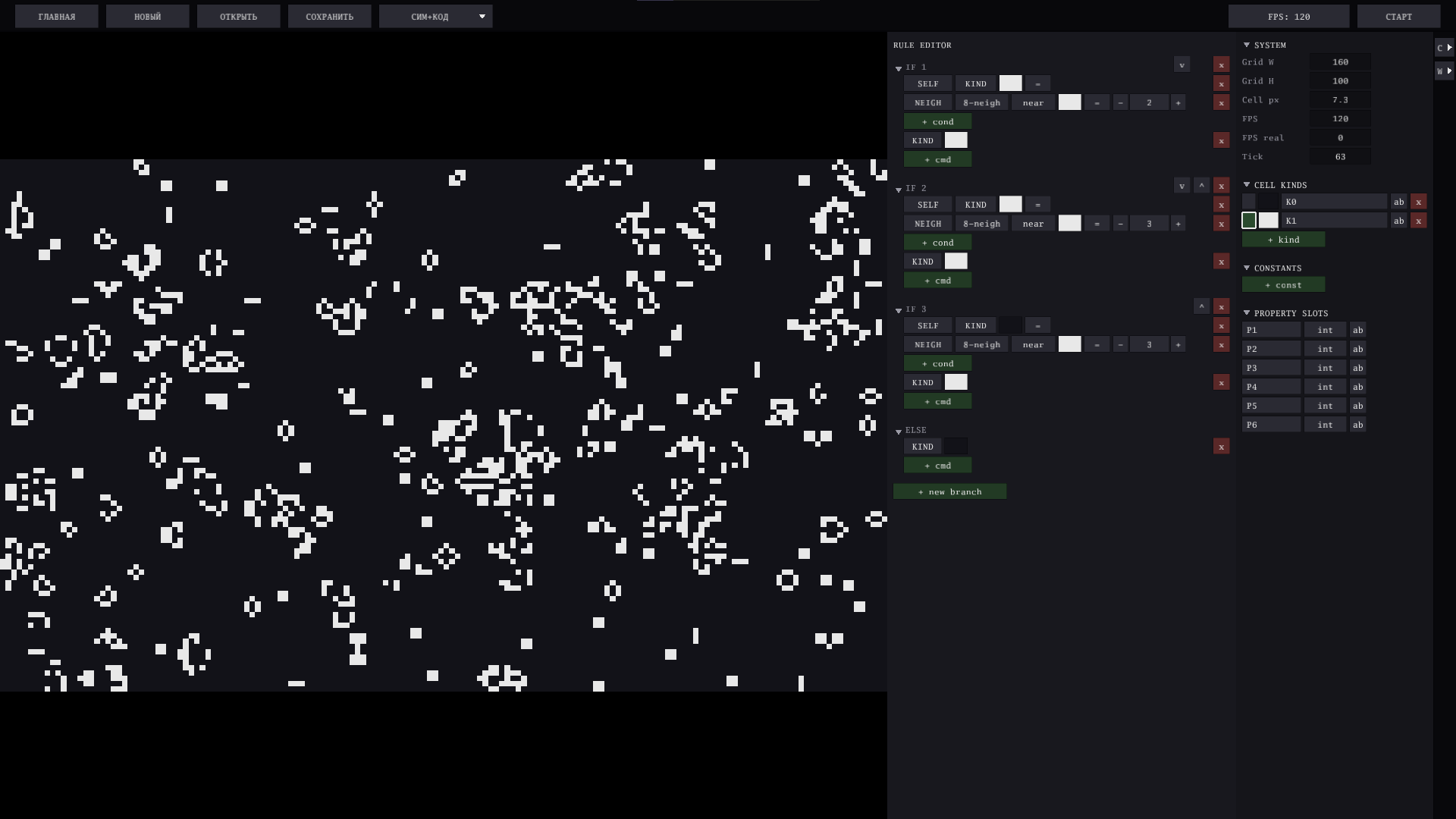
Grid WandGrid Hare editable fields now. The grid is moved into the new size on the spot, anchored at the bottom-left corner: whatever no longer fits is cut off, new space starts empty. No restart, no reload. - Pick the size a new project starts with on the PLAY screen — from 40×40 for something you want to see up close, to 500×300 for a pattern that needs room. The choice is remembered between runs.
- A saved project keeps its own size in its file, so sharing a 300×200 world just works.
- Worth knowing: every cell runs your program every tick, so 500×300 is nine times the work of 160×100. It runs — just slower.
Simulation speed, in ticks per second
The old speed control counted ticks per frame, which meant the real speed depended on your monitor: the same setting ran nearly twice as fast on a 144 Hz screen as on a 60 Hz one. That is gone.
- A speed field sits next to START/STOP and is measured in ticks per second. Type a value, or nudge it with
↑/↓— the step grows with the number, so you are not clicking sixty times to get from 60 to 600. - The speed is saved with your project and comes back the next time you open it.
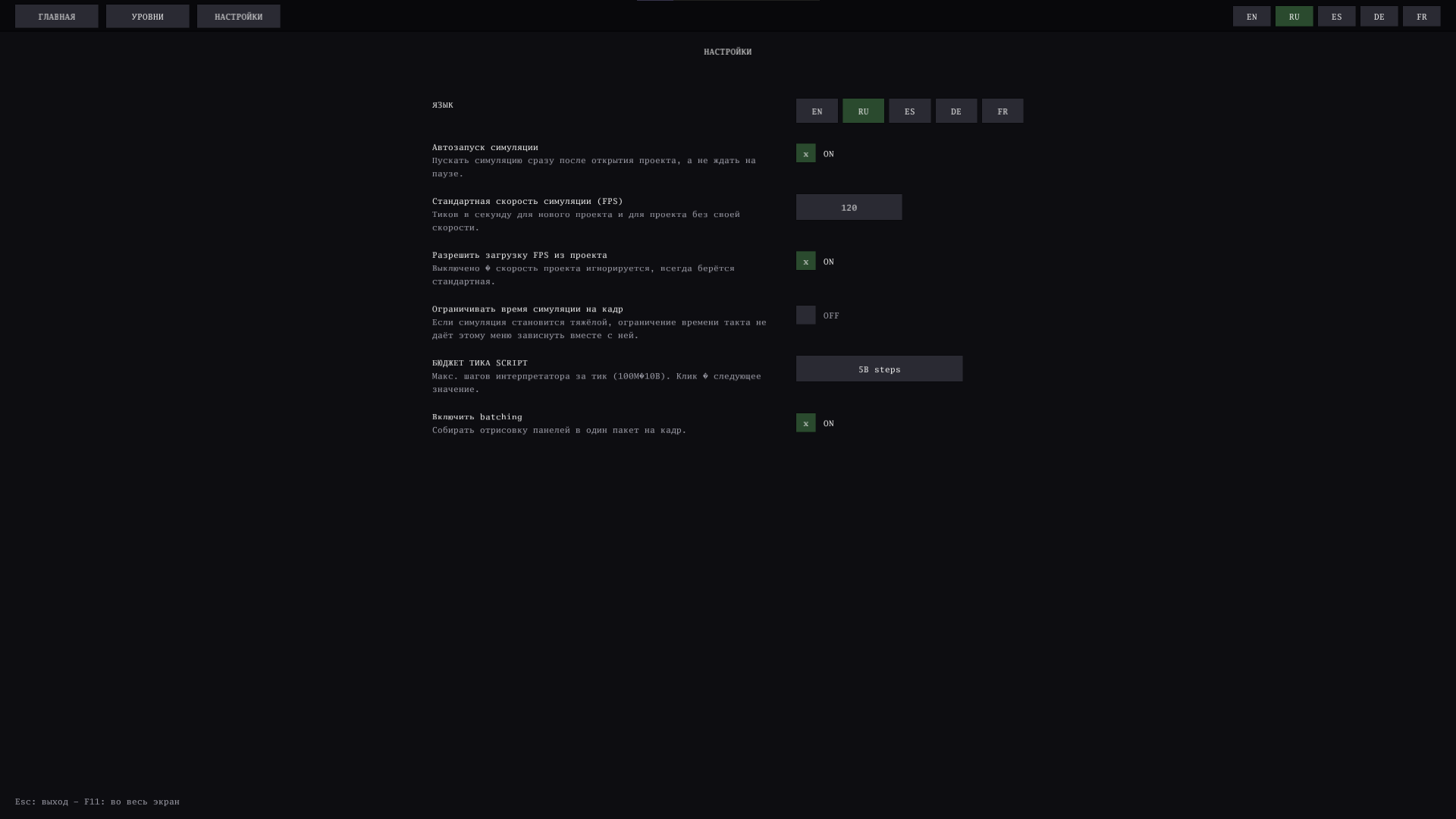
- Settings now hold the default speed for new projects, a switch for starting the simulation automatically when a project opens, and a flag for whether a project's own speed may be loaded at all — turn it off and every project runs at your speed, not its author's.
- Opening someone else's fast project asks first. A file saved above 300 ticks per second offers three answers: run it at your standard speed, run it at its own, or don't open it. No more accidentally launching a project that pins your machine.
- The SYSTEM panel shows both the speed you asked for and the speed you are actually getting. When they drift apart, the automaton is heavier than the time it has — that is the honest signal that you are hitting a limit.
When a tick doesn't finish
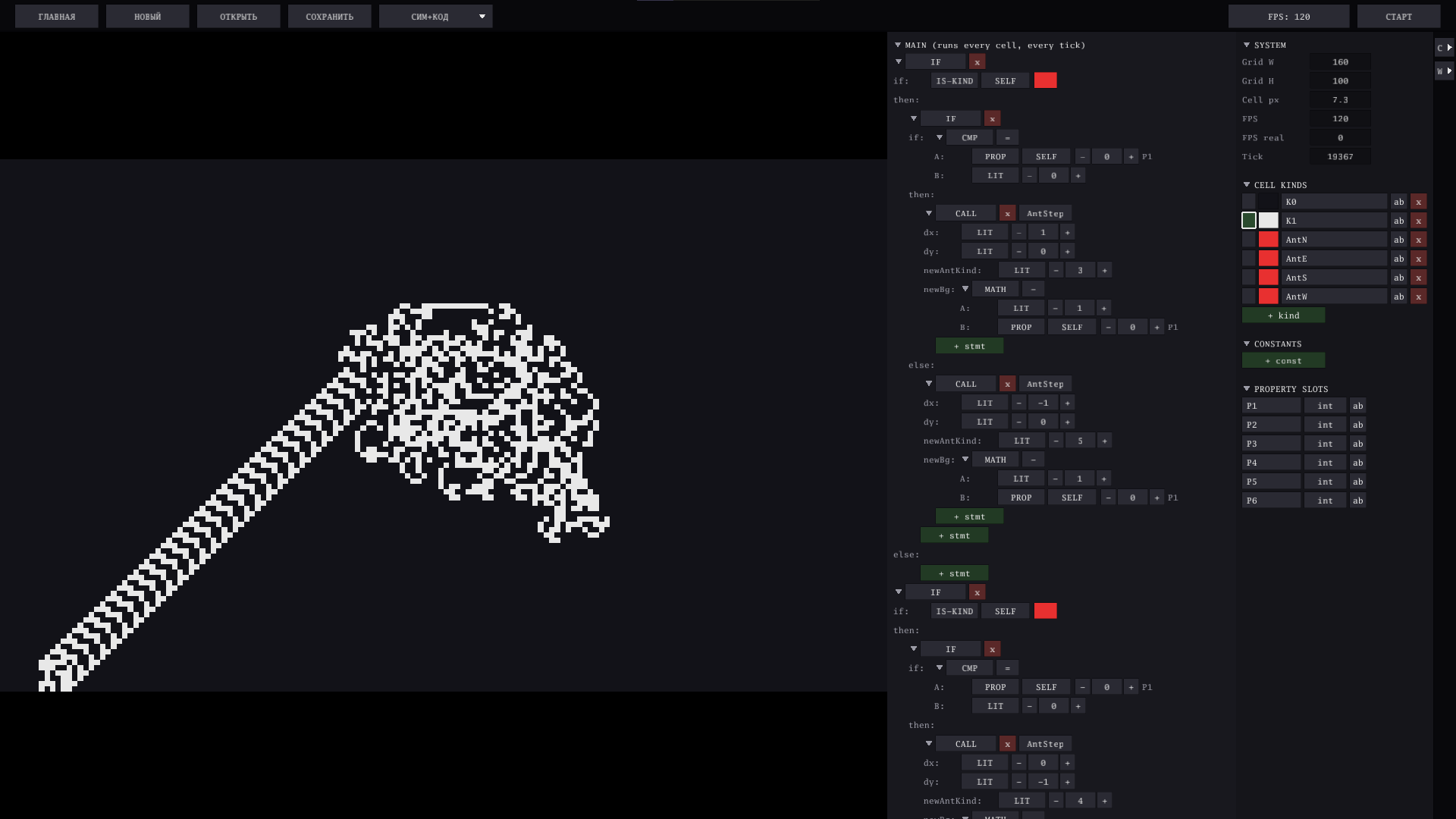
There has always been a safety limit on how much work one tick may do, so a runaway loop cannot freeze the app. Until now hitting it looked like nothing at all — the grid simply froze half-updated, with no explanation.
- A badge now appears in the corner of the field: the program did not fit into one tick, how many cells out of how many were updated before the budget ran out, and what is usually to blame — a
REPEATwith no way out, or aDISTANCEsearching the whole grid.
New in the language
SYSTEM— a new node that hands your program the parameters of the simulation itself:FPS(the configured speed),TICK(which generation you are on),GRID W/GRID H(the size of the world) andCELL PX(how big a cell is on screen). Counting ticks by hand in a cell property is no longer a thing, and a program can finally adapt to the size of the world it lives in. Left-click the parameter to pick from the list, right-click to cycle.BREAK— leave the nearest loop. It punches through nestedIFs but stops at the loop, so it is not a sneakyRETURN.REPEAT-IF— a loop that runs while a condition holds, instead of a fixed number of times. Same safety ceiling asREPEAT.
New example: Radar
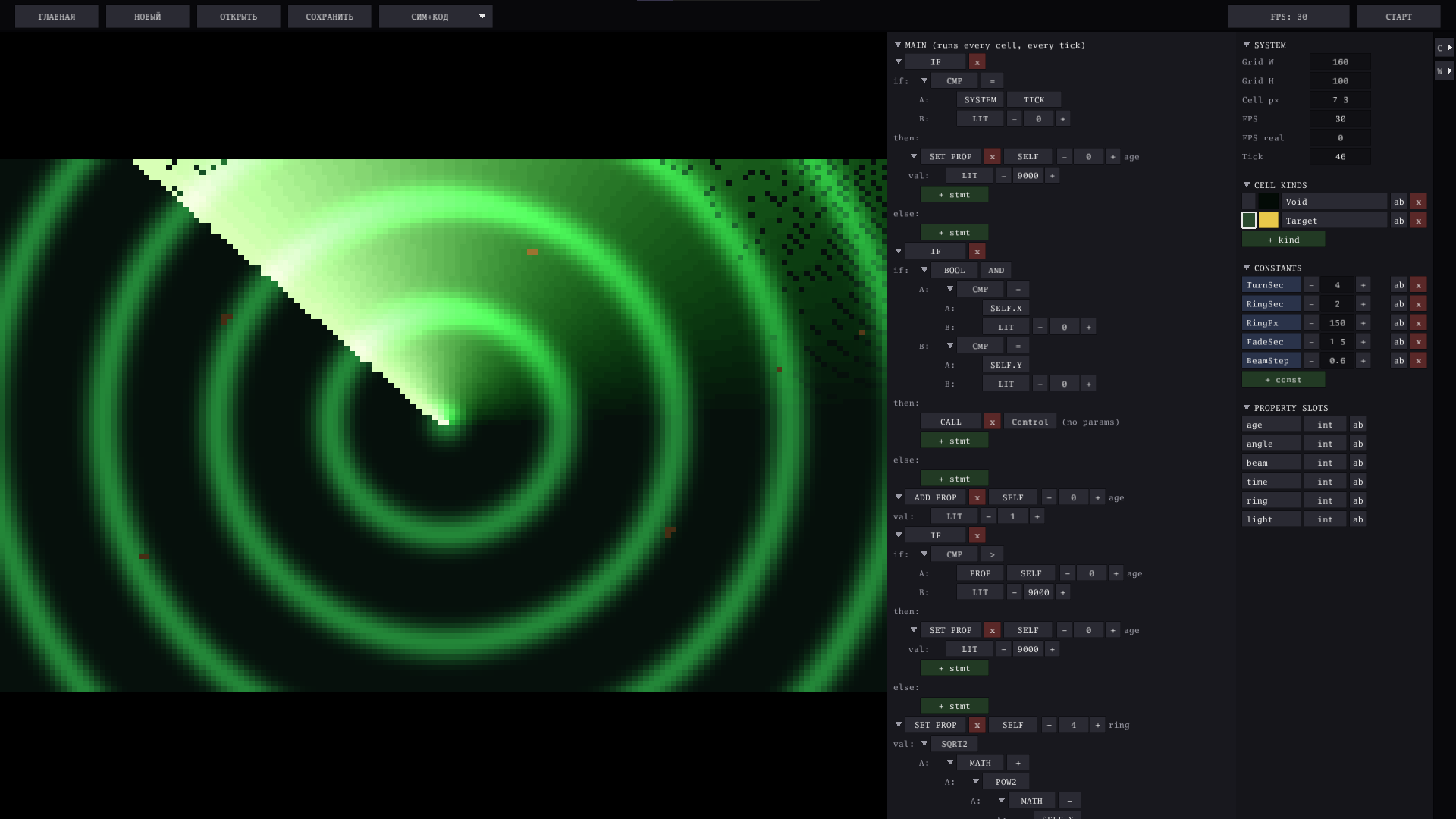
A rotating radar sweep over expanding range rings, with a fading trail and yellow contacts that flash as the beam passes over them. Paint your own contacts with the default brush and watch the sweep find them.
It is also a live demonstration of everything above:
- Change the speed while it runs — from 5 to 200 ticks per second. The sweep gets smoother or choppier, but it does not get faster: one revolution takes exactly
TurnSecseconds either way, because the program counts time in seconds throughSYSTEM.FPS. - Resize the world while it runs — the radar recentres itself on the next tick, because it asks
SYSTEM.GRID W/Hinstead of assuming. - Ring spacing is set in screen pixels and divided by
SYSTEM.CELL PX, so the rings stay the same width to the eye no matter the window or the grid. - The beam itself is a loop that steps outward from the centre and quits with
BREAKthe moment it leaves the grid — nobody can know in advance how many steps that takes.
Five constants to play with while it turns: seconds per revolution, seconds per ring, ring spacing, how long the trail glows, and the step of the beam.
Settings, rearranged
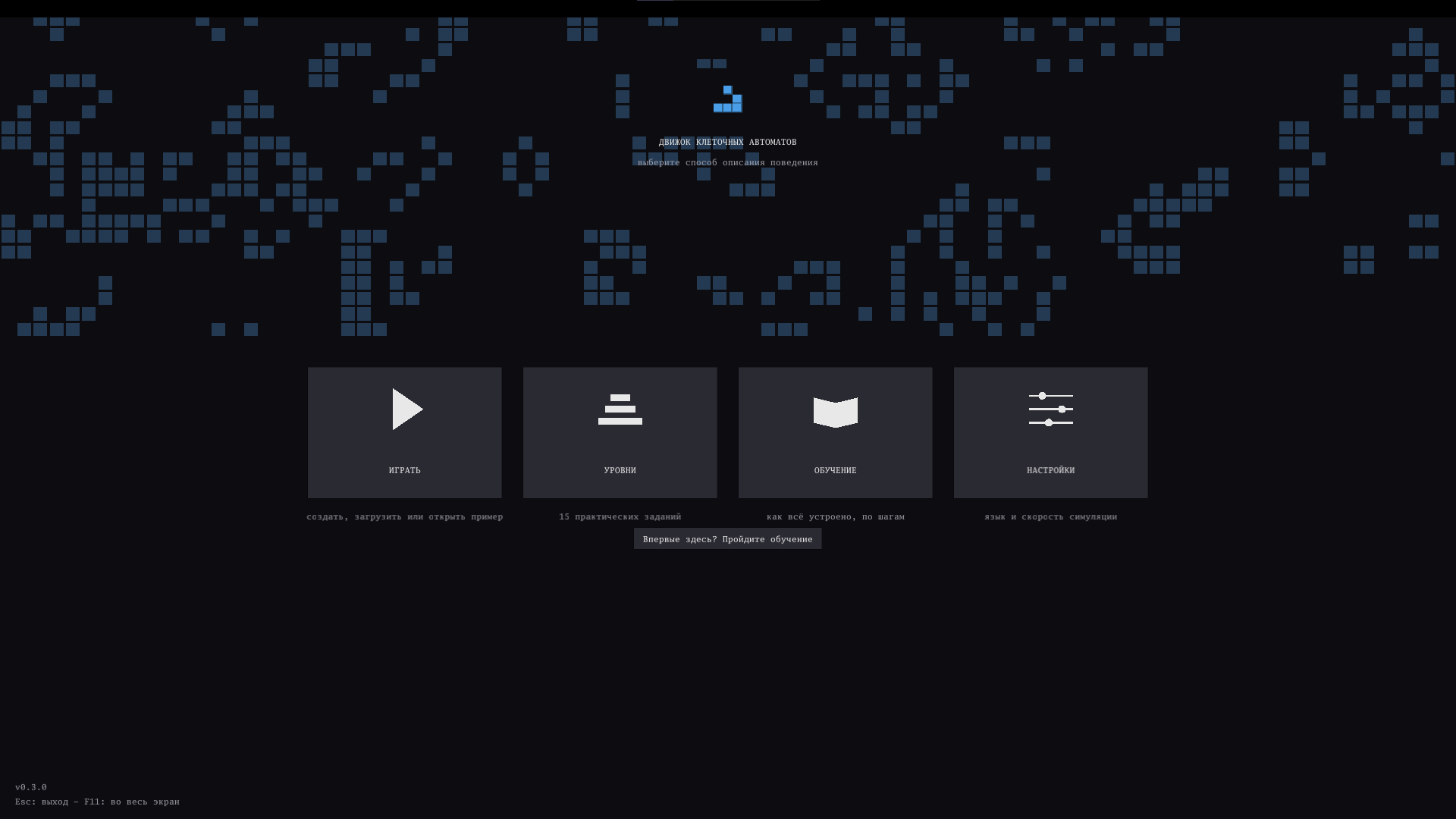
- The settings screen is now a list of rows — name on the left, control on the right — instead of a column of wide buttons. What is switched on and what it is set to reads at a glance.
Fixes
- A broken number no longer loses your project. If a value in a cell property or a constant ever became infinite or not-a-number, saving failed outright with
json: unsupported value: -Infand the file was not written at all. Such values are now saved as zero and the app tells you it happened — losing one broken number beats losing the whole project. - The tick counter resets for every project. It used to carry over from whatever you had open before.
- Long option descriptions in Settings no longer run underneath the controls next to them.
Projects saved with earlier versions open exactly as before — a file without a speed of its own simply uses yours.
Files
Get CAE - a cell for everything
CAE - a cell for everything
Cell automaton engine
| Status | In development |
| Category | Tool |
| Author | Tsar Igor |
| Genre | Simulation |
| Tags | Automation, Game engine, Singleplayer |
| Languages | German, English, Spanish; Castilian, French, Russian |
| Accessibility | Interactive tutorial |
More posts
- V1.0.1-VE0.4.014 hours ago
- V1.0.0-VE0.4.015 hours ago
- v0.3.11 day ago
- V0.2.23 days ago
- V0.2.14 days ago
- v0.1.0, just files4 days ago
- V0.2.04 days ago
Leave a comment
Log in with itch.io to leave a comment.